How to Buy $BMIC Using Other Currencies on Desktop
If you would like to purchase BMIC using currencies other than ETH, USDT, or USDC, you can still participate easily through the desktop presale platform.
Even when paying with alternative currencies, you must connect an ERC-20 compatible wallet, as your BMIC allocation and future token claim (at TGE) will be linked to that wallet.
Don’t Have an ERC-20 Wallet? Start Here
Before purchasing BMIC, you must have an ERC-20 compatible wallet connected to the Ethereum network.
Step 1: Set Up a Web3 Wallet
Download and install a decentralized Web3 wallet that supports ERC-20 tokens. Popular options include MetaMask (browser extension & mobile) and Trust Wallet (mobile wallet).
Once installed:
-
Create a new wallet or import an existing one
-
Safely store your recovery phrase offline
-
Set a strong password
-
Enable PIN protection
-
Activate Two-Factor Authentication (2FA) or biometric security if supported
Never share your private key or recovery phrase with anyone.
Step 2: Add ETH to Your Wallet
The BMIC presale runs on the Ethereum network, which means you must hold ETH to cover network transaction (gas) fees.
Although BMIC can be purchased using ETH, USDT, or USDC, you will still need some ETH in your wallet to pay gas fees for on-chain transactions.
You can fund your wallet by:
-
Buying ETH on a centralized exchange such as Coinbase or Binance and transferring it to your wallet
-
Using your wallet’s built-in fiat on-ramp feature to purchase ETH directly
Once your wallet is funded, you’re ready to proceed.
Already Have an Ethereum Wallet? Follow These Steps
If you already have an ERC-20 wallet, follow these steps to buy BMIC on desktop.
Step 1: Connect Your ERC-20 Wallet
Visit the official BMIC presale website on your desktop browser and click the “Connect Wallet” button at the top right of the page.

Select your preferred wallet (such as MetaMask or WalletConnect) and approve the connection inside your wallet.
Your connected wallet will be used to receive and claim your BMIC tokens.
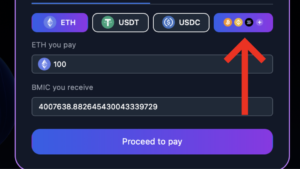
Step 2: Select “Other Currencies”
Once your wallet is connected, proceed to the payment section and select the option for other currencies instead of ETH, USDT, or USDC.
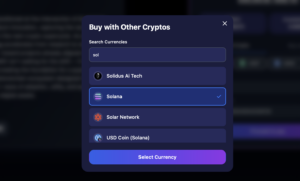
Step 3: Choose Your Preferred Currency
Select the currency you would like to use to purchase BMIC. This may include supported fiat or alternative crypto payment options available in the presale interface.
Step 4: Enter the Amount You Want to Spend
Enter the amount of your selected currency that you wish to use for the purchase.
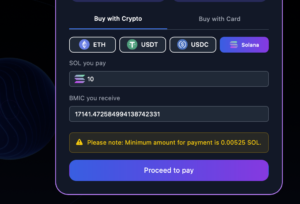
Step 5: Confirm the BMIC Amount
The platform will display the equivalent amount of BMIC tokens you will receive. Review the details carefully before proceeding.
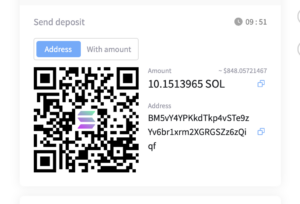
Step 6: Complete the Payment in the Payment Tab
After confirming, a new payment tab or window will appear showing:
-
The wallet address or payment details
-
The exact amount you must send
-
A time limit to complete the transaction
You must complete the transaction within the time displayed in that tab. If the timer expires, you may need to restart the process.
Step 7: Wait for Processing
Once the transaction has been completed, wait a few minutes for the payment to be processed and confirmed.
After confirmation, your BMIC allocation will appear on your dashboard, linked to the ERC-20 wallet you connected earlier.
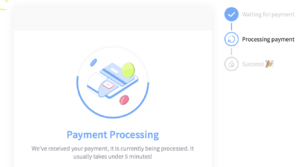
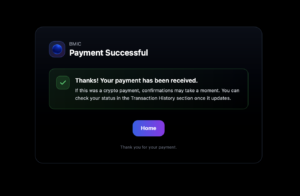
Your BMIC allocation will appear on your dashboard
After the transaction is confirmed on the Ethereum network you can see it if you click here:

What Happens After Purchase?
After the transaction is confirmed on the Ethereum network:
-
Your BMIC allocation will appear on your dashboard
-
You will be able to claim your tokens at the Token Generation Event (TGE)
-
The official TGE date will be announced by the team
Always ensure you are on the official BMIC website before connecting your wallet. https://bmic.ai/